Search This Blog

Jul 10, 2012

Restrict D Entry of Characters(List Column/Control)


Scenario: User is not allowed to type more than 200 characters in the Service Request Summary field.  
Solution: The length of the fields can be restricted on the application UI level with the help of the Field User Property called Text Length Override. Below is the syntax for configuring this Field User Prop:

Syntax:
Name: Text Length Override
Value: <length>

Steps:
  • Login into Siebel Tools.
  • Query for a Service Request Business Component and expand its child object in the object explorer.
  • Select field and Query for an Abstract field.
  • Expand the child object of Abstract field and select Field User Prop.
  • Create a New Record and Type the following :
    1. Property Name: Text Length Override
    2. Value               :  200 
  • Compile the changes and Test it.

Jul 3, 2012

Setting Local Developer in Siebel


Overview of Steps:
Sr.No
Task
Where To Performed
1
Setting Up Database Users
RDBMS (DBA Part)
2
Creating Positions
Apps – Admin User Screen
3
Associating Responsibilities
Apps – Admin User Screen
4
Setting Up Developers as  Siebel Employees
Apps – Admin User Screen
5
Setting Up Developers as Mobile Web Clients
Apps – Siebel Remote Screen
6
Generating a New Database Template
Apps – Server Config Screen
7
Extracting the Local Database
Apps – Server Config Screen
8
Initializing Each Developer's Local Database
Siebel Tools
9
Performing a Full Get
Siebel Tools
10
Perform a Repository Compilation
Siebel Tools
 
1.Setting Up Database Users
Use the following Script to Create a Database User
 •Microsoft SQL Server Script [ T-SQL ]
      Use master
              go
    
             CREATE LOGIN ‘USER_NAME’ WITH password = ‘USER_NAME’,
             CHECK_POLICY = off,     DEFAULT_DATABASE = DATABASE_NAME
             go
             use DATABASE_NAME
             go
             sp_adduser ‘USER_NAME’, ‘USER_NAME’, SSE_ROLE
             go


•Oracle Database Server Script [PL SQL ]
    create user ‘USER_NAME’ identified by ‘USER_NAME’;
    grant sse_role to ‘USER_NAME’;
    alter user ‘USER_NAME’ default tablespace &&siebel_tablespace;
    alter user ‘USER_NAME’ temporary tablespace &&temp_tablespace;


2.Create the Position in Siebel Application
3.Create a New Responsibilities
4.Create a Employee in Siebel & Associate Position & Responsibility
5.Setting Up Developers as Mobile Web Clients
6.Generating a New Database Template
7.Extracting the Local Database
8.Initializing Each Developer's Local Database


9. Performing a Full Get

10. Perform a Repository Compilation


Enjoy the Post.....................


:)

Siebel EIM

Introduction to Siebel EIM

Description :

Siebel EIM is one of the activity in the Siebel CRM Application to import, export, update and delete the bulk amount of data into siebel crm database with maintaining the referential integrity. It is one of the Server component which involves in the No of Process before Inserting the new data into siebel CRM database. It uses a EIM table as staging area to provide the data directly to base or Extension tables.

With the Help of mapping from Applet Control to BC Field and Table to Column we can find the Which EIM table we should use to insert the data into Siebel Tables.

Below Image will give more clear picture of Siebel EIM mapping.


Few More Post will Upload soon on different scenarios.


Thanks & Regards,
Asif Faheem Ansari

Jun 5, 2012

Add a New User to Local/Sample Database

Add a New User to Sample/Local Database
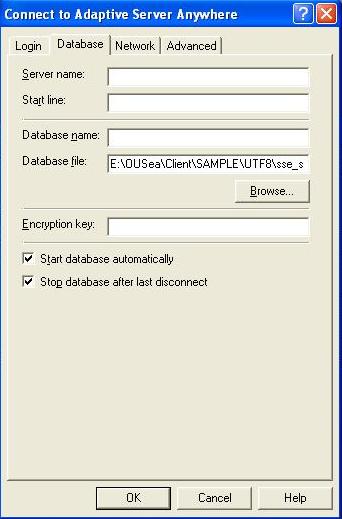
1.      Locate the dbisqlc.exe utility under the Siebel Thick Client Installation directory BIN folder.
Browse the Path of Sample/Local Database file.
Login To Sample/Local Database .
Scrip to Execute:
Grant connect to DDEV identified by DDEV
Grant membership in group SSE_ROLE to DDEV

2.      Create the DDEV Employee in the Application.

 3. Now this user can access the Siebel Application and Tools Application. 

Jun 4, 2012

Siebel Server Silent Installation

Siebel Server Silent Installation


Today we are going to learn about how to install Siebel server in silent mode.
What all you need to have a Siebel setup ready with you.
Steps

1 - Open the Command prompt and change the location where your Siebel Enterprise Server setup is located.
2 - Launch the Siebel Enterprise Setup in a recorded mode. Entre the following command to store the configuration in .ini file.
3 - Follow the wizard to create a input parameters for Siebel server configuration.
4 - Now check the [E:\TEMP\silentSiebel.ini] file which has all the input arguments selected during the wizard. 
5 - Now this file will be used in the silent installation of Siebel Server. 
6 - Now run the Siebel Enterprise Server Configuration Setup by going to 
            Start – Programs – Siebel Enterprise Server Configuration 8.1 – Siebel Server Configuration  
7 - Configure Product for Offline Deployment Mode. [It creates an XML file at end]. 
8 - Pass the following Parameters during the wizard


Parameter name
Value To be Select or Type
Mode
Configure Product for Offline Deployment Mode
Action
Create New Configuration file
Database Config Info
Next
GNS Server Authentication User Account Name
SADMIN
GNS Server Authentication User Account Password
SADMIN
GNS Host name
Machine Name or IP Address
GNS TCP/IP Port
2320
Siebel Enterprise Name
OUEnt
Siebel Server Name
Machine Name [ Your Wish ]
Siebel Server Description
Describe the Server in words. [Optional]
Enable Component Groups
Call Center or As per your Wish
SC Broker Port
2322
Sync Manager Port
40401
Additional Task
None
Register Oracle ODBC
Not Selected
Clustering Configuration
Not Selected
Siebel Server Services Auto
Not Selected
Final Tasks
Next
Summary View
Next


9 - Save the file into E:\Temp\silent_server.xml
10 - Now edit your silentSiebel.ini file to invoke configuration file just you created. 
11 - Finally invoke the Silent installer by going back to command prompt.
12 - Enter the following command to invoke the installer to run in the console and take the input parameters from silentSiebel.ini file.
    Setup.exe –is:javaconsole  -console  -args  SS_SETUP_INI=E:\TEMP\silentSiebel.ini
13 - It will invoke certain other console windows.
14 - Open the Services window and confirm that your Siebel server services are created successfully. 
15 - Now login in the application through think client And now you are done.


May 2, 2012

Siebel Service Window Script - Simple


Following Script will start the windows service if the status is stopped.

================================================================

for /F "tokens=3 delims=: " %%H in ('sc query "Windows_Service Name" ^| findstr "        STATE"') do (
  if /I "%%H" NEQ "RUNNING" (
   REM Put your code you want to execute here
   REM For example, the following line
   net start "Windows_Service Name"
  )
)

Comments:

Please change the name of the service as per your services details.
Refer the Image here for Name of the Service : 


Feb 16, 2012

Configure Email Notification about Component Job Fail


Configure Email Notification about Component Job Fail
  • Navigate to Administration - Server Configuration > Enterprises > System Alerts.
  • Select Administrator Email Alerts and select Copy Record from the applet-level menu.
  • Enter the following details as shown in below image.
  • Set the Workflow Process Manager component to use this event notification profile. [Change the Parameter Value: to Profile You Just Created It. 
  •  Parma Name: Notification Handler

  •  Param Name: Notification Action on Task Ex     Value = 1


  • Now create a job for this component without any parameter to generate an error message.


  •  See the Result in Outlook express.
  •  

Siebel IP 2017 - Web Tool Development Steps

Siebel IP 2017 Development and Deployment Steps : 1. Click on the Workspace Icon in Siebel Web Tools application. 2. Create a New work s...